> ## Documentation Index
> Fetch the complete documentation index at: https://checkly-422f444a-mintlify-22bf3c27.mintlify.site/llms.txt
> Use this file to discover all available pages before exploring further.
# Send Alerts to Incident.io
> Configure Incident.io integration to create and resolve incidents from Checkly alerts
Checkly integrates with [Incident.io](https://incident.io/) to monitor your alerts and create / resolve incidents in your Incident.io account. Let's get started!
1. Log in to Incident.io and navigate to **Alerts > Sources**, click **New Alert Source** and select "Checkly"."
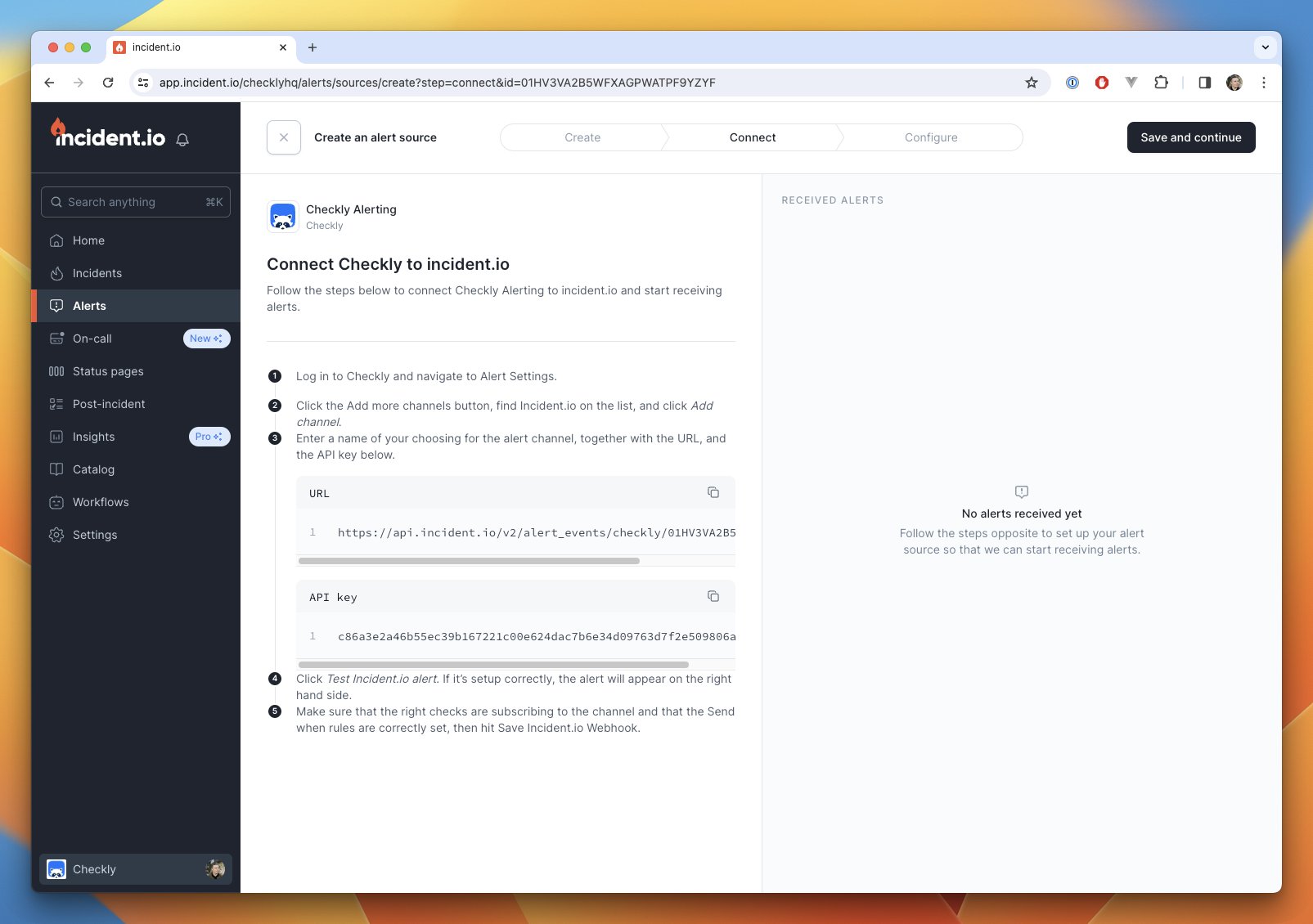 2. Take note of the URL and API key that Incident.io provides you with, and head over to [Checkly > Alerts](https://app.checklyhq.com/alerts/settings), click **Add more channels** and select **Incident.io**.
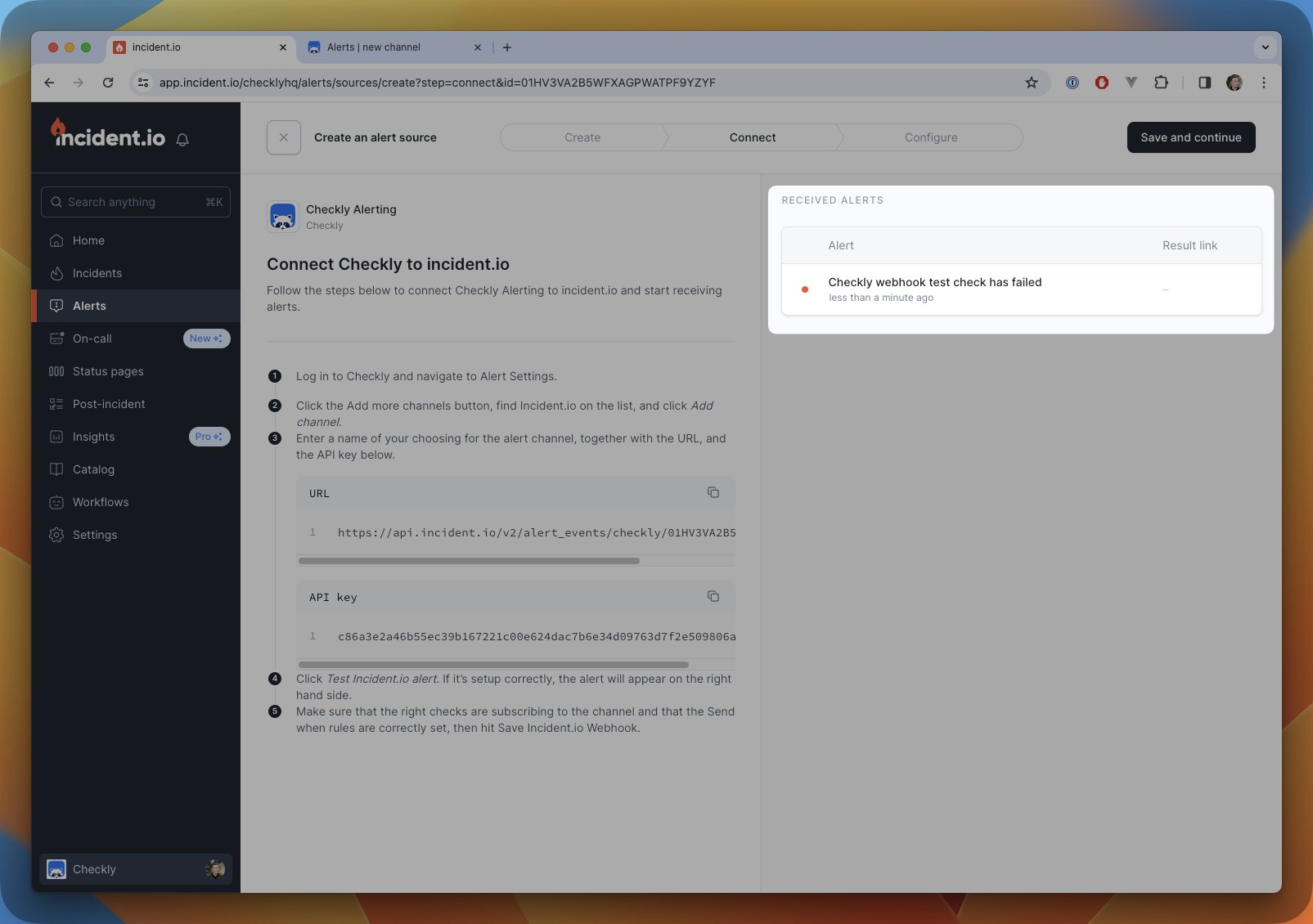
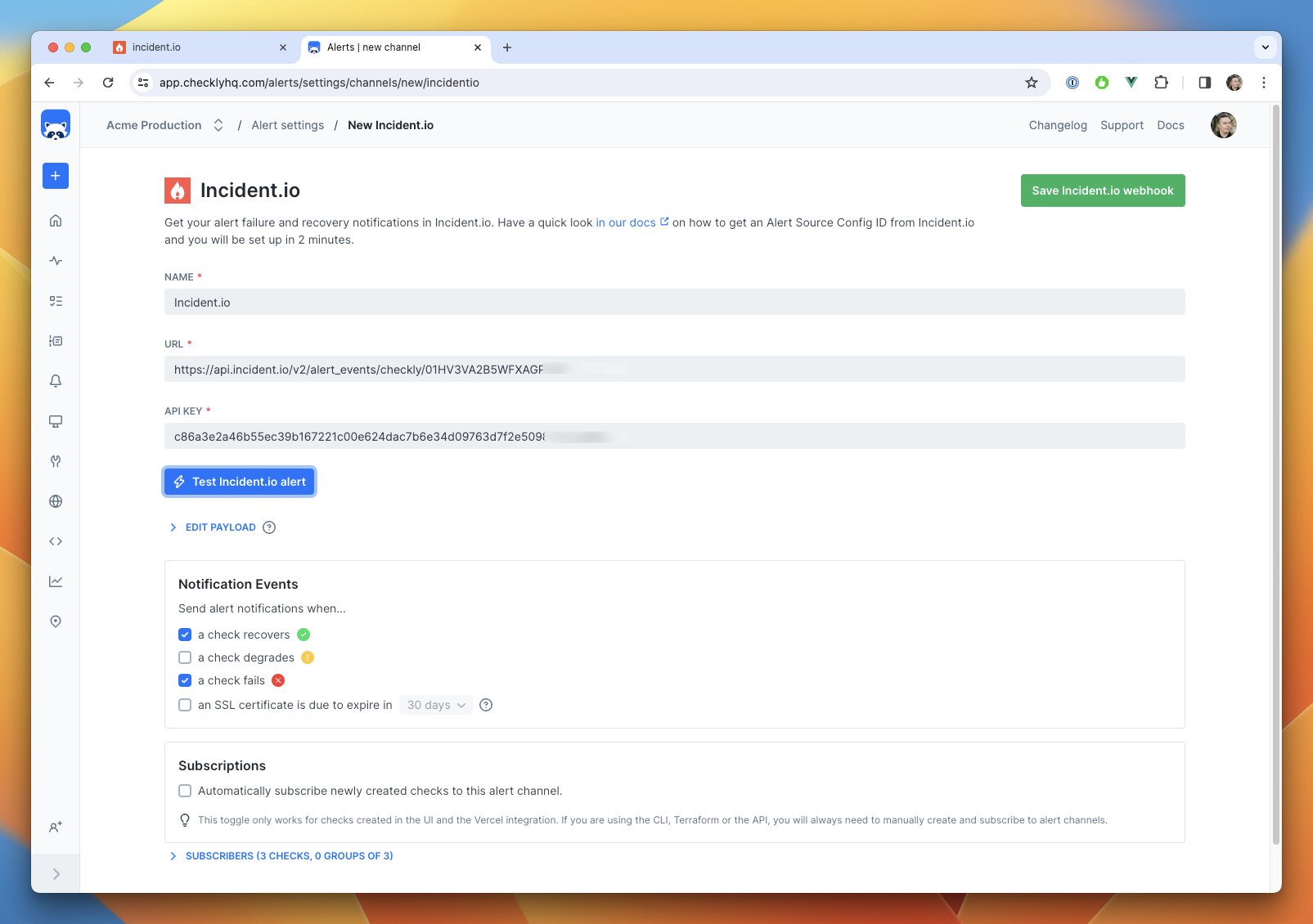 3. Copy and paste in the URL and API key and hit **Test Incident.io alert** to verify the connection. On the Incident.io side, you should now see a test alert pop up!
 4. We recommend one last step. Create a new custom attribute on the Incident.io side to grab the Checkly result link from the JSON payload. This will help reference what check result triggered an alert.
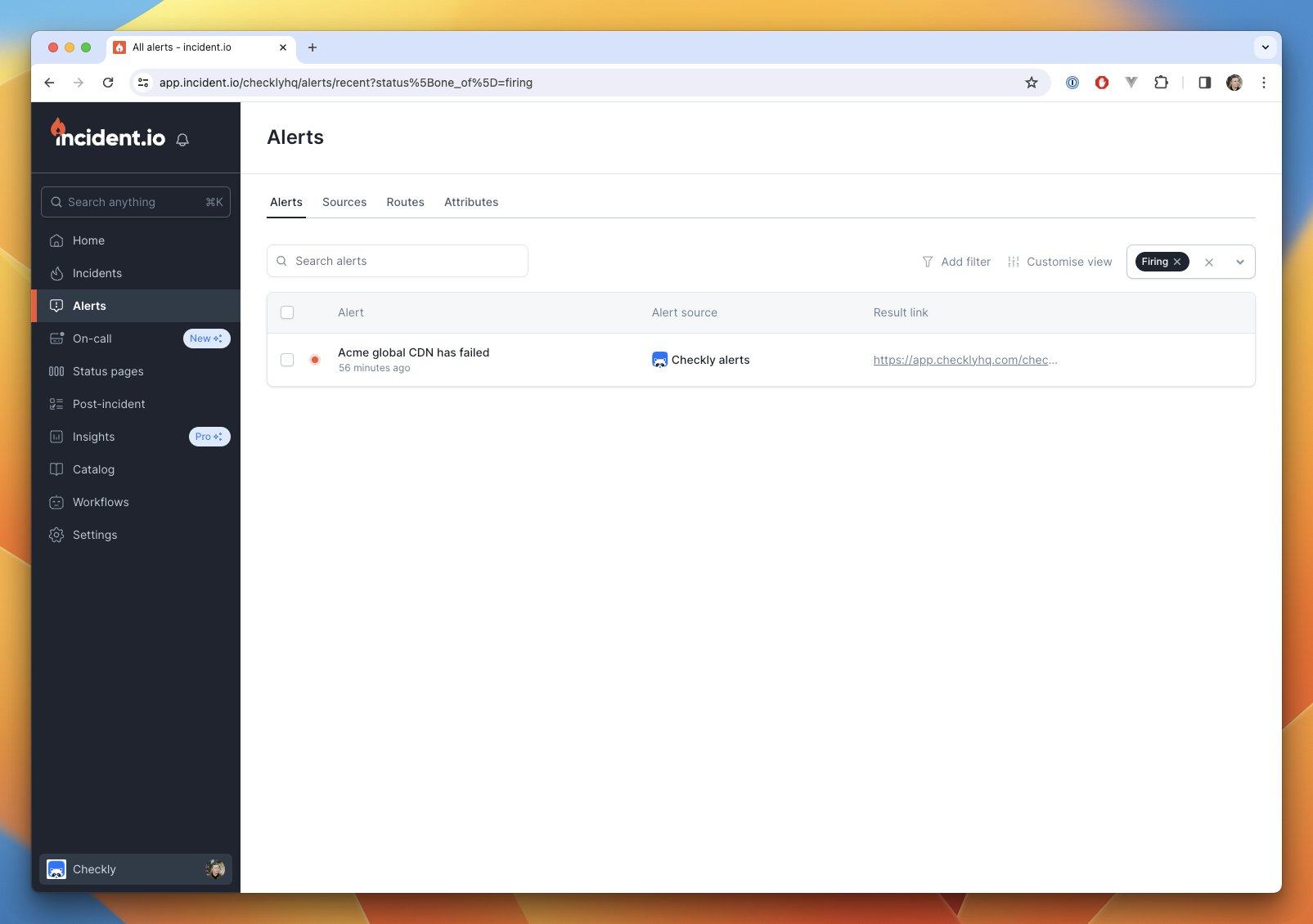
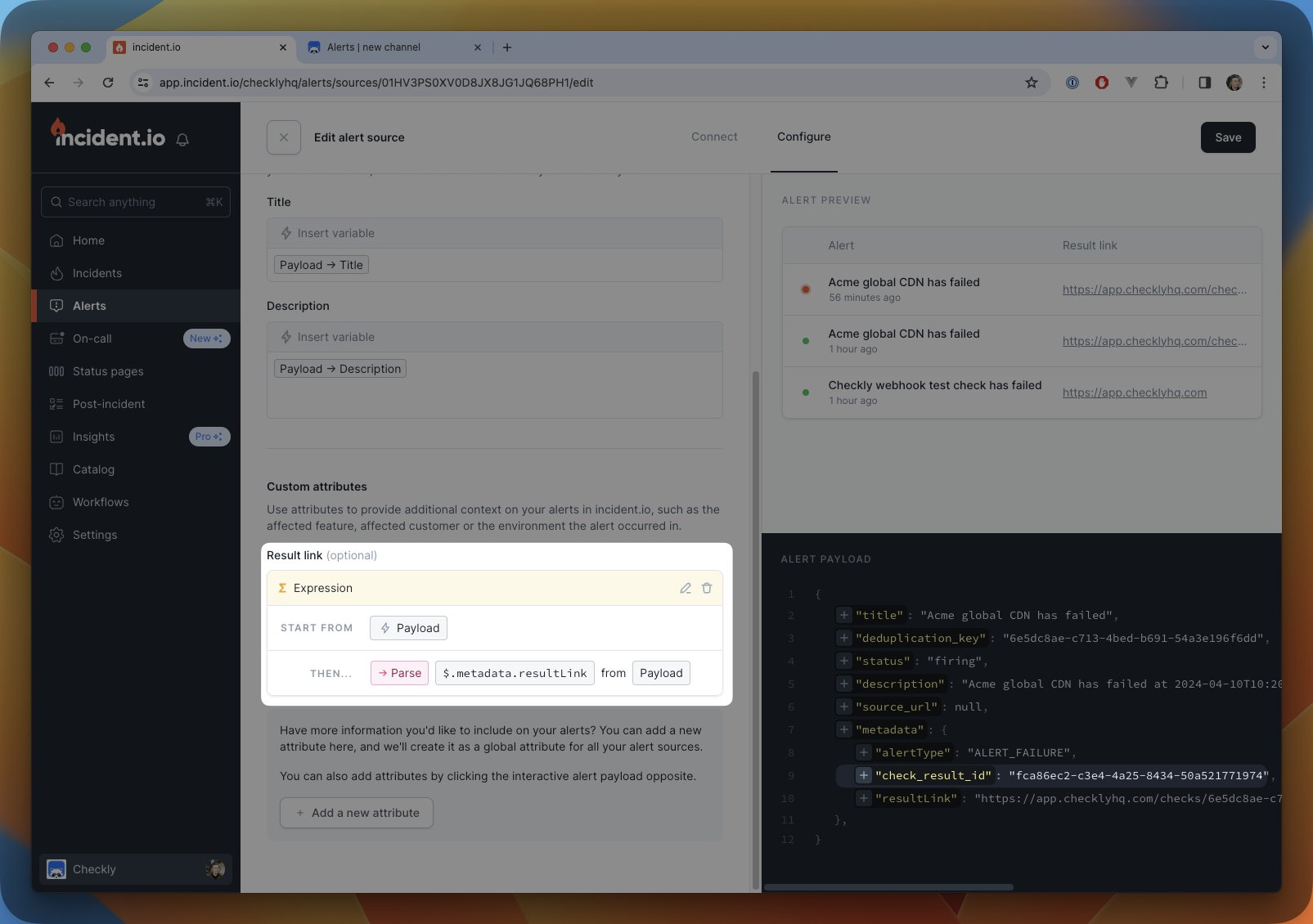 5. Now you are all set up! When an alert is triggered, an incident will be created in Incident.io with the Checkly check result link attached.